Top Solutions for Spotify APK Crashes and Errors
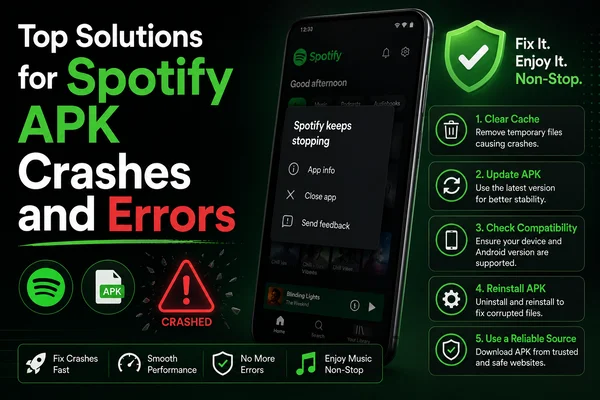
Spotify Apk is still preferred by many users who require swift and convenient access to their favorite music. Spotify offers unlimited choices of songs, playlists, and podcasts for all moods. Many of its users like the freedom and ease that an APK version can offer. Even the best music-playing application will sometimes encounter technical difficulties. Such problems could disrupt your listening habits or interfere with your daily schedule. Fortunately, most of them are quite easy to fix on your own at home.
Spotify Does Not Open or Keeps Crashing
Sometimes, you tap the icon, and nothing happens. Sometimes it opens up and then crashes immediately. This is one of the most common Spotify APK problems.
The best solution is to restart the app by force-closing it; it gives a fresh start to the system. If the problem continues, update the Spotify APK to the latest version; an outdated version might not work effectively with your device. If both of the above steps fail, then completely reinstall the application: remove Spotify, restart your phone, and install it once again.
No Sound When Playing Music
At times, the app shows that a track is playing, but there is no sound whatsoever. That is frustrating and may happen with both mobile and desktop devices.
First, check your volume settings. Ensure that your device is not muted. Then, check your earphones or speakers. Unplug them and try again. It is also effective to force close the Spotify APK and open it again. This refreshes the audio setup.
Sound Crackles or Becomes Distorted
Distorted and unclear sound can ruin one's listening pleasure, and most often it signals that there is something wrong with the audio quality settings.
Open the Spotify settings and lower the audio quality to High or Normal; this relieves the pressure on your device. If you use Spotify on a computer, turn hardware acceleration off from the advanced settings. You should also try different headphones to rule out an issue with your device.
Spotify Only Plays Downloaded Songs
Sometimes, you cannot stream anything online, and the app plays only those tracks that you have downloaded.
First, check your internet connection. Make sure your Wi-Fi or mobile data is active. Then look at the app settings and make sure Offline Mode is turned off. If it is on, Spotify won't load online content.
Unable to Download Songs for Offline Listening
If you can't download music, first check your Spotify plan. Offline downloads aren't available for Free or non-premium users. Then check that you have sufficient storage space on your device. If all seems well, sign out of your account and then sign in again.
Local Files Do Not Play
Spotify can play local files, provided the right settings are enabled.
Go to Preferences and then enable the option that will grant you access to the local files. Ensure that your files are in supported formats such as MP3, MP4, or M4P.
Music Pauses or Stutters
This mainly occurs when your device is overloaded. Try restarting your device to refresh the system. Also, close any other applications running in the background. This frees up memory and internet bandwidth.
General Issues
Clear the app cache if there are any random issues. This solution works best for mobile users. Update your operating system; using an older operating system may cause conflicts in apps.
Final Thoughts
Spotify APK provides a premium music experience with an easy interface and a huge library. The issues one faces while working with it are pretty minor, which can be resolved within a few minutes. Whether it is a crash of the application, a broken sound, or the disappearance of playlists, these solutions will keep you on track quickly. In fact, you'll have smooth, uninterrupted music every day if you follow the right steps.